How to Run an HTML File in Chrome (3 Free Ways, No Software Needed)
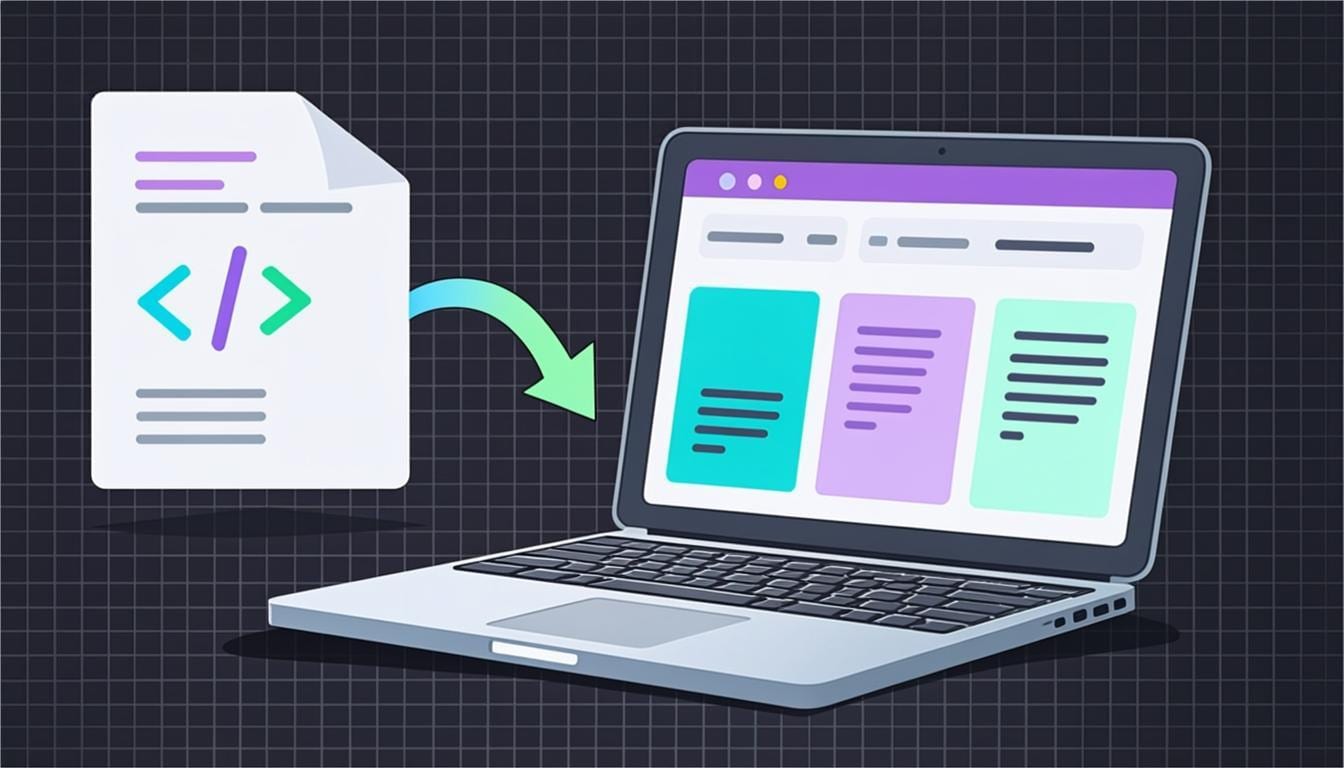
So you've written your first HTML file — maybe copied a snippet from a tutorial, maybe typed it out yourself — and now you're staring at it asking the question every beginner asks: how do I actually run this thing? The good news is that running HTML is easier than running almost any other kind of code, because the browser is the runtime. No compilers, no installs, no PATH variables. In this guide I'll show you three free ways to do it, starting with the classic double-click and ending with the method I personally use while still writing code.
Method 1: Double-click the file (the classic way)
If your file ends in `.html`, your computer already knows what to do with it. Find the file in Finder (Mac) or File Explorer (Windows) and double-click it. It opens in your default browser — usually Chrome — and your page is rendered instantly. That's it. Behind the scenes, Chrome reads the file from your disk and interprets the tags, exactly the way it does for any website.
A couple of small tips that save beginners real frustration: first, if the file opens in a text editor instead of the browser, right-click it and choose Open With → Google Chrome. Second, make sure the extension really is `.html` — Windows hides extensions by default, so a file named `index.html.txt` is more common than you'd think. Turn on *View → File name extensions* in File Explorer and double-check.
Method 2: Drag and drop into Chrome
If Chrome is already open, you don't even need to touch the desktop. Drag your HTML file straight into a Chrome tab and drop it. Chrome loads it immediately. This is my favorite trick when I'm testing a few different versions of a page — I keep the files in a folder and drag each one in turn. You can also use the keyboard shortcut Ctrl+O (or Cmd+O on Mac) inside Chrome to get an open-file dialog.
Method 3: Run it in an online editor with live preview
The first two methods are perfect for finished files. But if you're still *writing* the page — and as a beginner, you always are — saving and switching to Chrome every time you change a line gets old fast. That's the problem CodeLive Studio solves: you type HTML (plus CSS and JavaScript) in the left panel and the right panel re-renders your page in about a second, automatically. No saving, no file switching, no setup at all — it runs in the browser you're already using.
This is the same workflow professional developers use with local tools like VS Code + Live Server, except there's nothing to install. When you're happy with the result, you can download your work as a single HTML file that opens with Method 1, or grab a ZIP with separate style and script files if you want to continue in an editor on your computer.
| Method | Best for | Needs saving? | Setup |
|---|---|---|---|
| Double-click | Finished files | Yes | None |
| Drag into Chrome | Quick checks | Yes | None |
| Online live editor | Writing and tweaking code | No — instant preview | None |
Helpful things to know when running HTML locally
CSS and JavaScript files must sit next to the HTML
If your page loads but looks unstyled, check the paths. A tag like `<link rel="stylesheet" href="style.css">` only works when `style.css` is in the same folder as the HTML file (or the path in `href` matches where it actually is). This single issue causes about half of the 'my CSS isn't working' questions beginners post on forums.
Right-click → View Page Source is your friend
Once the file is open in Chrome, right-click anywhere on the page and choose *View Page Source* to see exactly what Chrome received. Even better, press F12 to open DevTools — the *Console* tab will show JavaScript errors in red, which is the fastest way to debug a page that 'just doesn't do anything'.
Some features need a web server
A plain HTML page opened from disk can do almost everything, but a few things — fetching JSON files with `fetch()`, some camera and microphone APIs, certain cookie behaviors — are restricted on `file://` pages for security. If you hit one of those walls, an online JavaScript playground that serves your code over HTTPS is the quickest workaround.
The browser is the most forgiving runtime you'll ever use — worst case, it shows you something ugly instead of an error screen. Don't be afraid to just try running things.
Which method should you use?
For a file someone sent you, or a template you downloaded: double-click it. For checking your own file once it's done: drag it into a tab. But for the actual process of *learning and writing HTML*, use a live editor like CodeLive Studio — the one-second feedback loop is genuinely the difference between frustration and fun when you're starting out. You can also practice CSS in a dedicated CSS editor if styling is your current mountain to climb.
Frequently asked questions
Why does my HTML file open as code instead of a page?
The file is probably named with a .txt extension (like index.html.txt) or your default app for .html files is a text editor. Right-click the file, choose Open With → Google Chrome, and turn on file-name extensions in your file manager to check the real name.
Do I need to install anything to run HTML?
No. Any modern browser — Chrome, Edge, Firefox, Safari — can run HTML files natively. For editing with a live preview, a free online editor like CodeLive Studio also requires zero installation.
Why do my images show but my CSS does not?
Usually the CSS file path is wrong. If your HTML uses href="style.css", that file must be in the same folder as the HTML file. Also check that the link tag is inside the <head> section.
Can I run an HTML file on my phone?
Yes — the easiest way is an online editor. Open a playground like CodeLive Studio in your mobile browser, paste your code, and the live preview renders it instantly, with no file system needed.
Keep reading
The 7 Best Free Online Code Editors in 2026 (Honest Comparison)
Every listicle ranks editors by feature count. This one ranks them by what actually matters: how fast you go from opening the page to running your idea.
CSS Editor Online: Practice and Preview Styles Instantly (No Setup)
CSS is learned through the fingers, not the eyes. An online CSS editor with instant preview turns every value change into a tiny experiment — here's how to use that.
What Is a JavaScript Playground? Test Your Code Online in Seconds
You want to test five lines of JavaScript. Do you really need to create a folder, an HTML file and a script tag? A playground says no — here's how to use one well.
Try everything from this article — live
CodeLive Studio is a free online playground with instant preview. No signup, no install — just type and run.
Open the free editor →