What Is an Online HTML Editor with Live Preview? (And Why Beginners Love Them)
The first time I used a live-preview HTML editor, the thing that surprised me wasn't the preview — it was how quickly I stopped being afraid of the code. I moved a closing tag, watched a paragraph jump into place half a second later, and thought: *oh, so that's what that tag does.* That instant feedback loop is the whole point of an online HTML editor with live preview, and in this article I'll explain exactly how these tools work, what to look for when picking one, and the limits you should know about before you build your next portfolio site in one.
What exactly is a live-preview HTML editor?
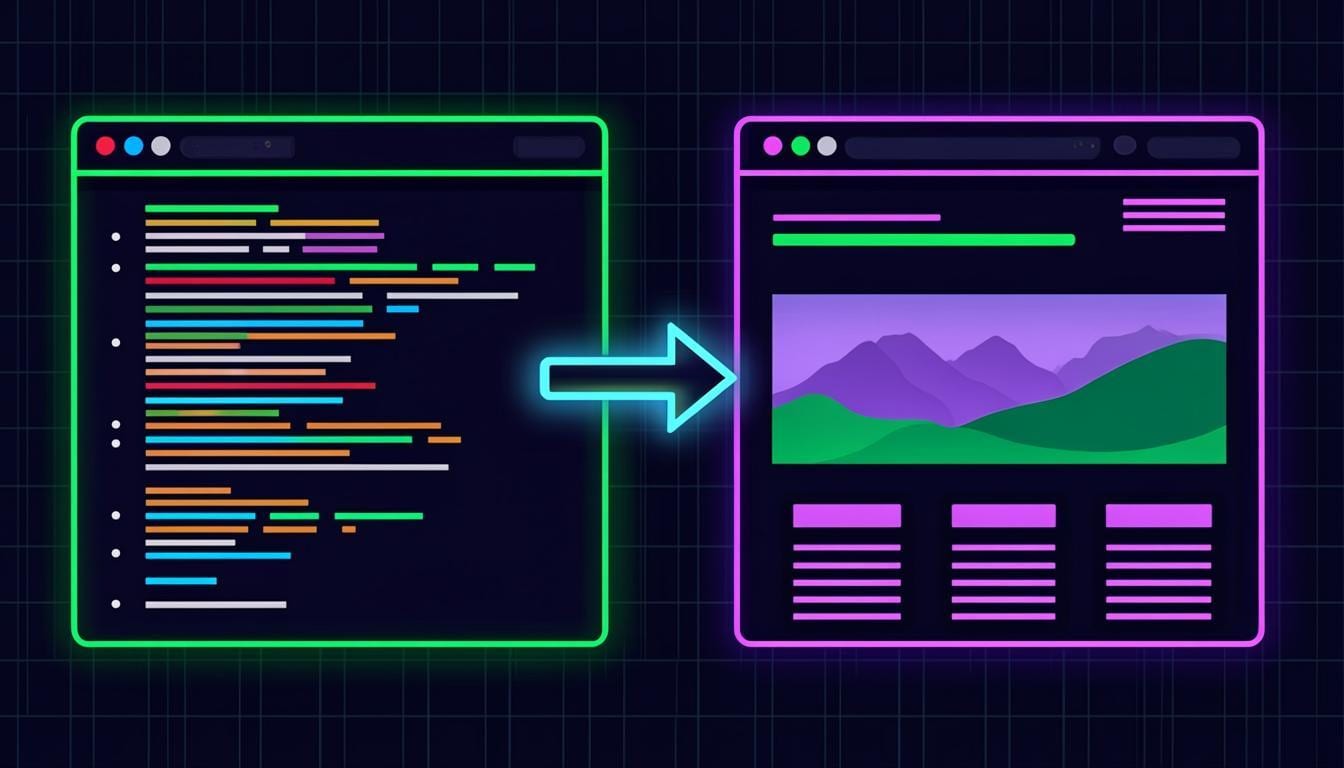
It's a website with two halves. On one side there's a code editor (usually with syntax highlighting — colors that distinguish tags, attributes and text). On the other side, a real browser view renders your HTML the moment you type. Change `<h1>` to `<h2>` and the headline shrinks. Add a `<p>` and a paragraph appears. There is no 'Run' step in the ideal version — the page updates as you type, usually after a very short debounce so it doesn't re-render mid-word.
The key word is online: the whole thing runs in your browser tab. Nothing to download, nothing to configure, nothing to keep updated. You open a URL and you're working. On a good one you can be productive within ten seconds of deciding to try an idea — which is exactly why they've become the default way people take their first steps in web development.
How the live preview actually works
The trick is an `<iframe>` — a browser page inside your browser page. The editor takes your HTML (plus your CSS and JavaScript) and writes it into that iframe's document every time you make a change. Because the iframe is a genuine rendering context, what you see is what a real browser would show: real layout, real fonts, real interactivity. Slightly more advanced editors 'debounce' the updates — they wait a moment after your last keystroke, so the preview doesn't flicker chaotically while you're mid-sentence.
This is also why sandboxing matters: well-built editors run the preview in a sandboxed iframe so that broken JavaScript in your project can't wreck the editor itself. If you're comparing editors and one of them freezes whenever you write an infinite loop, that's a sign the sandboxing is weak.
What to look for in a good one
- Fast, automatic preview — updates in about a second after you stop typing, without pressing a Run button.
- A real code editor — syntax highlighting, autocomplete, tag auto-closing and Emmet support turn typing HTML from a chore into something almost pleasant.
- All three languages — HTML, CSS and JavaScript tabs, because you'll need them within the hour.
- Console output — you'll want to see `console.log()` and errors without opening DevTools separately.
- Download and share — export a single HTML file (or a ZIP) and share your work with a link when you're stuck.
- Works on mobile — a floating preview bubble is a surprisingly big deal if you're learning on a phone or tablet.
CodeLive Studio checks all of those boxes — that's the tool I'll use for examples throughout this article — but the checklist above applies to any editor you're evaluating.
When a live editor beats a local setup
Let's be honest about the traditional path: installing VS Code, creating a folder, saving `index.html`, installing the Live Server extension, keeping a browser window positioned next to the editor. It's a great setup — once you're committed. But it's also a wall of setup that stands between a curious person and their first `<div>`. A live editor is better when you're learning, experimenting, prototyping a small idea, or testing a snippet someone gave you in a forum answer. It's also better on locked-down computers (school, library, office) where you can't install software.
When you'll outgrow it (and what to do then)
Live editors aren't trying to replace a full development environment. The moment your project needs npm packages, a framework like React or Next.js, version control with Git, or dozens of files, you should graduate to a local setup — everything you learned transfers directly. The good news: a well-designed playground softens that jump. Downloading your work as a single HTML file or a ZIP project gives you a ready-made starting folder for VS Code, so the migration is a copy-paste, not a rebuild.
Try this 60-second exercise
Open the editor, delete the default code, and type this into the HTML tab:
<h1>Hello, me.</h1>
<p>I made a web page and you're looking at it.</p>
<button onclick="this.textContent='It works!'">Click me</button>
Watch the preview update as you type, then click the button you just built. Congratulations — in about a minute, you've written and run interactive HTML with zero setup. That's the loop that makes these editors addictive, and it's the fastest way I know to move HTML from 'thing I read about' to 'thing I do'.
Frequently asked questions
Is an online HTML editor with live preview free?
Most of them are, including CodeLive Studio. The tools run in your browser and make money separately (or not at all), so the core editing and preview features are free without an account.
Do live-preview editors save my code if I close the tab?
Good ones do. CodeLive Studio, for example, autosaves your project to your browser's local storage continuously, so a refresh or accidental close doesn't lose your work. Creating an optional account adds cloud saving across devices.
Is my code visible to other people?
No — your code stays in your browser unless you explicitly press Share, which creates a link others can open. Anonymous visitors cannot browse or search your projects.
Can I use a live HTML editor on a Chromebook or school computer?
Yes, that's one of their biggest advantages. Because everything runs in the browser, they work on Chromebooks, tablets and any computer where you can't install software.
Keep reading
The 7 Best Free Online Code Editors in 2026 (Honest Comparison)
Every listicle ranks editors by feature count. This one ranks them by what actually matters: how fast you go from opening the page to running your idea.
CSS Editor Online: Practice and Preview Styles Instantly (No Setup)
CSS is learned through the fingers, not the eyes. An online CSS editor with instant preview turns every value change into a tiny experiment — here's how to use that.
What Is a JavaScript Playground? Test Your Code Online in Seconds
You want to test five lines of JavaScript. Do you really need to create a folder, an HTML file and a script tag? A playground says no — here's how to use one well.
Try everything from this article — live
CodeLive Studio is a free online playground with instant preview. No signup, no install — just type and run.
Open the free editor →